How Google Locks You Into Google My Maps Forever and What the Alternative Is
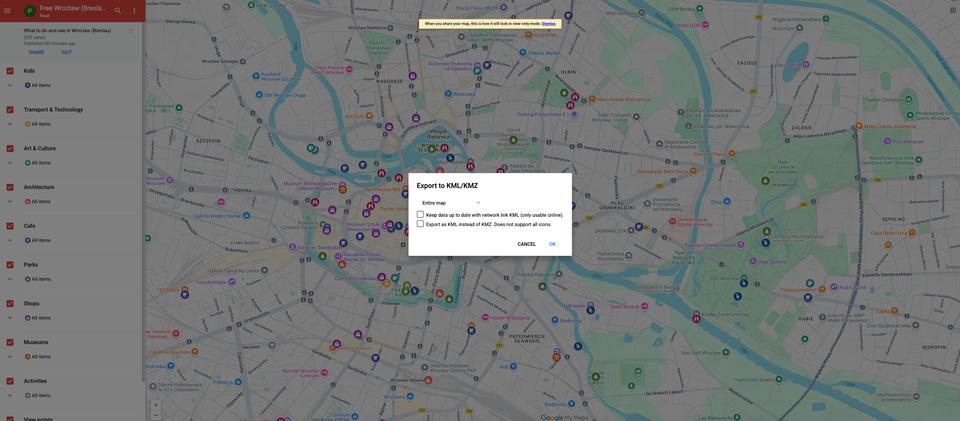
You probably know about one of Google’s map services—Google My Maps—and you may have even used it to plan trips or embed maps with places into a blog, Notion, etc. At first glance, it’s free and allows you to create maps with multiple locations. However, Google locks you into My Maps forever.
Let’s assume you decide to switch to another map service with more features: unlimited categories, faster performance, mobile-friendly design, better map data, a service that doesn’t track everything about you and your users. You go to your map in Google My Maps, open the map menu, select Download KML, download the file with your places, upload it to another map service—and then you see that the new map shows only the place name, location, and icon. That’s it: no photos, no descriptions, not even the Google Place ID that you can see in Google My Maps.
This means you’re not able to export full information about your places from Google My Maps. You’re forced to continue using it or create a new map and manually copy all places one by one.
We used Google My Maps for years to collect different places, routes, and other location-based data because there was no real alternative. But about a year ago, we decided to build our own Google My Maps alternative for our own needs, because Google My Maps is no longer a reliable product: it hasn’t received updates in a long time and has many limitations.
After releasing the first version of MakeMeMap (our Google My Maps alternative) for internal use, we realized that other people could benefit from such a service, so we made it public. It’s free for up to 1,000 visitors. It doesn’t collect any data about you or your users. It supports an unlimited number of categories, allows you to export all data from a map, and is fast and mobile-friendly. (The editor can currently be used only on screens wider than 780 px, but shared maps work on any screen, even on older devices.)
Just try it and you’ll see the difference. Create an account at makememap.com using your email and password, and you can start building your own maps right away.
Is there a way to automatically import data from Google My Maps?
Unfortunately, no. You can export your map from Google My Maps in KML or KMZ format and then import that file into MakeMeMap. However, when places were added via Google search, Google exports only the place name and coordinates. Other place information is not included unless it was manually added in Google My Maps. Any additional data—such as descriptions, text, or photos—must be added manually after import.
As always, we’re happy to answer questions and help with any issues related to our service. Just send an email to hey@makememap.